
Diffractor photo and video organizer help
On this page: views, duplicates and possible copies, related items, search, dates, viewing and zoom, panoramas and 360° photos, metadata editing, batch operations, importing, RAW and supported formats, and NAS synchronization.
What is Diffractor?
Diffractor is a Windows application for organizing, viewing, and searching local photo & video collections. It focuses on fast metadata editing, duplicate detection, and powerful search.
Everything is built so you can read one sentence off the screen: in this scope, this command affects this target and produces this effect. Scope is where results come from, the target is the focused item or the complete visible selection, and anything consequential states its count, destination, and whether it can be recovered before it runs.
Your collection is the set of folders you choose, including their subfolders. Indexing enables fast search, presence and possible-copy checks, duplicate detection, and collection totals. Browsing elsewhere does not add that folder to the collection.
Collection folders can be excluded, identified by removable-drive label, or temporarily offline. Offline items stay searchable from the index and are marked as unavailable until their drive returns.
Choose / update collection folders in Collection Options (CTRL+F6).
Need a step‑by‑step workflow? See the how‑to guide. This page covers deeper technical details and common questions.
Diffractor can view and play many file formats and codecs. It is not meant to replace a full media player with every playback feature.

- Enter open the focused item in Fullscreen
- Space play / pause video and audio
- Shift+Space start / stop a slideshow
- Esc leave Fullscreen or close a dialog
- ←/→ previous / next item
- Ctrl+←/→ extend selection for side‑by‑side compare
- F11 toggle Fullscreen
- K toggle details pane
- Ctrl+Space enter zoom mode
- R show related items
See the full keyboard shortcuts reference.
Items, Fullscreen and task views
Items is the browser: grouped thumbnails or a detail list, with an optional preview beside them. The divider between the two is resizable and each side scrolls independently. The controls that decide what the list contains — media-type filters, recursion, grouping, sorting, thumbnail size and the filter box — sit at the head of the list and scroll with it, so a long list is never permanently shortened by a fixed band.
Those settings are also on the button at the base of the scrollbar, which is the one control always on screen. Hovering it says what the listing holds broken down by file type, and how many items a filter is currently hiding. Clicking it opens Group by, Sort by, the media-type filter, Show items in subfolders and Scroll to top — the same commands the toolbar carries, so the two can never disagree about what is offered or ticked.
Fullscreen gives the whole display to one photo, video, audio track, or a two-item comparison. It is presentation only: scope, search, filters, grouping, sorting, focus, selection and your scroll position are all preserved when you leave it.
Task views each handle one job with their own controls: Edit, Tags, Locate, Rename, Convert, Metadata, Date, Import and Sync. A task view opens with a short explainer saying what it does, what it acts on and what it writes or keeps, then names the target set and its count before offering any parameters — so you read the target before the options that act on it.
A task view's Close returns you to Items; it never exits Diffractor. Because the task keeps the context it started from, cancelling always lands you somewhere you recognize.
Commands live on the surface they change, and the ones that act on your selection sit in the panel that describes that selection, so the command and the items it will affect are read together.
How does Presence & duplicate detection work?
Presence first tells you whether the displayed item is located in one of your indexed collection folders. When you browse outside the collection, it can also show possible matching copies inside the collection. Sidecar files (e.g. XMP and subtitles) are shown separately. Hover over a thumbnail to see presence information, or hover over the displayed item title for details. Duplicates are tinted purple; items with sidecars are tinted blue.
Diffractor combines file, metadata, and visual evidence:
- Identical — the same file content.
- Same file — strong name, date, or size evidence identifies a likely copy.
- Same picture — visual evidence identifies the photo despite a re-encode, resize, re-save, or quarter-turn rotation.
Crops remain separate, and low-detail images such as blank frames or plain scans are not claimed as visual matches. Matching is deliberately cautious, but review possible copies before importing, replacing, or deleting a file.
Open an external folder, such as a memory card, and group by presence to separate files that need attention from files with possible collection copies.
Presence reports one of these:
- In collection — this file is located in an indexed collection folder. It does not mean the file is unique.
- Possible copy — a matching candidate exists in the collection.
- Possible newer copy — the matching collection candidate is the newer version.
- Possible older copy — the matching collection candidate is the older version.
- Outside collection; no possible copy identified — the completed check found no candidate. That is not proof no copy exists.
- Checking presence — indexing or comparison is still running, so a file is never reported as missing before the check finishes.
When candidates disagree, the answer most useful for an import decision wins: a possible newer copy first, then a possible same version, then a possible older copy. Results improve as indexing progresses and refresh in place — you never have to navigate away and back to see the finished answer.
Presence is a browsing and import aid. It states confidence rather than proof, it never picks which file to keep, and possible copies are never silently added to what a command will act on.
The Duplicates sidebar, Related items and Presence read the same evidence, so they agree about what counts as a copy and how strongly.
Sidecars are paired automatically: photos pair a .xmp file; videos pair .srt, .smi, .vtt, .mpl2, .thm and .xmp.

What are Related items?
Press R to ask one question about the focused item: what else in my collection belongs with this? The search covers the indexed collection, nothing is created, moved or modified, and results are grouped by relationship:
- This item and possible copies — the item itself, plus anything the duplicate rules identify as a copy of it.
- Same album — the same album, by the same album artist where both are named.
- Same series — the same show.
- Taken at the same time — capture times close together. File timestamps do not count, because a collection copied in one pass shares them.
- Taken in the same place — capture coordinates close together.
An item that qualifies more than once is listed once, under its strongest relationship, so the same photo never appears twice in the results.
Each relationship returns only the closest handful rather than everything that qualifies, so a related search never buries you — useful in a sparse collection, where the nearest photo might otherwise be years or continents away. Within a group, results are ordered by closeness, and whatever grouping you last chose for ordinary searches is left untouched for next time.
A related search is ordinary search text, so it can be saved as a favorite and reopened later with the same relationships. Like presence, it is a browsing aid: related items never become the target of a command on their own.
How do I perform advanced searches?
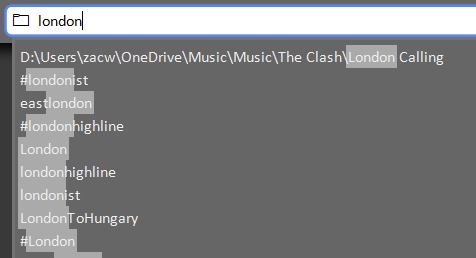
The address bar accepts folder paths, filters, and free‑text. By default only collection folders are searched; add explicit paths to search elsewhere.
Quick search: Press Ctrl+F or F3 to focus search, and Ctrl+F3 to focus the Items filter box. Press R for Related items.
The text London can match a tag, description, or location.
Search items can be excluded with a minus. Items not in London -london or Items not in a folder -c:\photos\secret.
Folders & files
By default only collection folders are searched. Add a folder or drive to look elsewhere — including removable media by drive letter (D:) or volume label (MY-SD-CARD).
- c:\photos c:\videos London — restrict to these folders
- D:\Media\2023 — limit to a folder
- D:\Media\2023\*.jpg — only JPGs
- D:\Media\2023\** — flatten subfolders
Media types
- @Photo — photos only
- @Video — videos only
- @Audio — audio only
- @Photo or @Video — combine with OR
Dates
Every item carries three dates and a search can ask about any of them — see Original, Created and Modified below.
- May — any May
- May 2022 — May 2022
- 2022 — the whole year
- original:2022 — taken in 2022; also taken:, when:, timeline:, c:
- created:'May 2022' — the file was made then; also digitized:
- modified:2022 — last changed then; also updated:
- age:7 — anything from the last seven days
- Year:2022 — explicit metadata year
Tags
- #London — tag match
- #London #Fireworks — both tags (AND)
- #London -#Fireworks — exclude a tag
- #London or #Paris — either tag (OR)
Metadata properties
- Exposure:1/60 — shutter speed
- FNumber:2.8 — aperture
- Camera:'Canon EOS 7D' — camera model
- City:'New York' — photos resolved to that city, including GPS-only photos
- near:London — photos near the resolved place
- loc:London,UK,10km — photos within a specified radius
Missing metadata
- without:tag — items with no tags
- with:location — items that have a location
- with:place — items with a stored place field
- without:location — items with neither stored location text nor coordinates
- without:rating — items with no rating
Duplicates & panoramas
- @duplicates — all duplicate items
- @duplicates 2022 — combine with other terms
- @panorama (short: @pano) — files that declare themselves a panorama
Completions & moving around
While you type, ↑/↓ preview completions in the address bar without changing what you typed or rebuilding the list, Tab accepts the highlighted completion without running it, and Enter runs it. Esc restores what you typed; press it again to restore the address you started from. Your own spelling and quoting are kept.
Alt+↑ broadens the current search by exactly one step — it drops the date, then the media type, then the remaining terms, then a folder level — so the jump is the same size whether or not a folder is involved. Alt+←/→ move back and forward through what you have already looked at, restoring the selection along with the search.
Grouping, sorting and filters belong to you. Clicking a date chart, a group header or a sidebar entry changes the search only — it never quietly re-sorts or re-groups your results as a side effect.
How do grouping & sorting work?
Search results are shown as groups of thumbnails. Choose how items are grouped to slice a collection in different ways — group by date for a timeline, by camera to separate devices, or by presence when reviewing a memory card.
Group by file type, folder, date original, date created, date modified, camera, resolution, size, extension, aspect ratio, location, rating & label, album, or presence. Shuffle randomizes the order for rediscovery.
Thumbnails show the whole picture. Tiles are laid out in rows of one shared height, so each tile keeps the shape of what it holds and a row fills the width without cutting anything off. A row that cannot be filled that way is left short rather than cropping your photos.
Within each group, sort by name, size, or date — original, created or modified — and dates can run oldest- or newest-first. When grouping by duplicates, each duplicate run is shaded so it stands out.
Switch between a thumbnail grid for visual browsing and a detail list with metadata columns for scanning the facts.
Filters change what you can see, not what exists. When a filter is hiding items, the bottom of the list says how many and offers to clear them; if everything is hidden, that offer appears directly under the filter controls instead of leaving an apparently empty list. Hidden items also leave the selection, so a command only ever acts on items you can see.
Original, Created and Modified
A media file can carry a dozen date tags that disagree, so Diffractor resolves them into three dates and keeps them separate:
- Original — when the content was made: the shutter fired, the tape rolled, the track was recorded.
- Created — when this file was made, falling back to the Windows creation stamp.
- Modified — when the file last changed.
Each one can be grouped by, sorted by and searched independently, and the same date answers the timeline, the group headers and the tile caption — so clicking a month always returns the items that month counted.
The properties panel names the tag each date came from, and Adjust date names it for every item before a run, so “the date is wrong” is a question with a visible answer. Editing software that rewrites its own date field on save no longer moves a photograph to the day it was retouched.
⚠ Upgrading from 1.27.1 or earlier changes some saved searches.
taken:, when:, timeline: and c: now mean Original rather than the
file's own date, and created: now means Created alone rather than both dates at once.
If you grouped by date created, you are moved to Original once, which is what
that order was showing you. The upgrade re-indexes in the background and keeps answering
searches throughout.
How do locations work?

Add location writes the map-center coordinate to the selected files. Diffractor uses its built-in place database to derive a nearby, qualified place for display and search; it does not silently write that inferred name into the file.
- L add location to selected items
- F3 search by location name
- Ctrl+Shift+O open containing folder
Location searches resolve place names and include files that contain only GPS coordinates. When a coordinate is not confidently inside a named place, Diffractor reports Near X with a direction or Remote area instead of assigning a misleading town.
The sidebar shows your collection's places on a globe you turn by dragging in either direction; hovering a marker names the place and its count, and clicking searches for that place and a radius around it. The sidebar's history chart shows eight years of months at a time, with a navigator band beneath it spanning the whole of your collection, so the oldest years are always reachable.
Viewing, comparing & zooming
Open any item in Fullscreen with Enter, then move through the collection with ←/→. Photos, videos, audio and animations all play in place — no need to switch apps.
Press and hold to inspect detail temporarily, or press Ctrl+Space to enter zoom mode at 100% or the last working scale. Pan with the arrow keys or by dragging; +/- step through scales, 0 toggles Fit, and Escape returns to Fit. Scale and position carry between images so you can inspect the same detail across a series.
Compare side-by-side: select an item, then extend the selection with Ctrl+←/→ to view two items together. Press A to pin a selected item so it stays in the comparison while you browse; an orange badge shows what is held wherever that item appears, and clicking the badge releases it. In zoom mode, Tab switches comparison panes.
Scrub video from the grid: move the pointer across a video thumbnail and it previews frames by position, so you can find the moment without opening the file. The last frame successfully previewed becomes that video's stored thumbnail and survives a restart. Previewing never downloads an offline file and never modifies the media.
Draw a region on the picture: hold Ctrl and drag to draw a rectangle, which stays where you put it. Drag inside it to move it, then use its three buttons to close it, zoom to it, or open Edit with it already set as the crop. Esc clears the rectangle first, and only then unwinds the zoom.
The rectangle belongs to the picture, not to the window, so it survives resizing, zooming and background indexing — and it is discarded when you move to another item.
The mouse wheel: the pointer chooses what moves and the modifier chooses which of its axes. Over the item grid the wheel scrolls the listing and Ctrl+wheel changes thumbnail size; over a magnified picture the wheel steps items and Ctrl+wheel steps the zoom scale anchored where you are pointing. Over a picture that is merely fitted, Ctrl+wheel does nothing rather than reaching past the picture to resize thumbnails behind it. A pinch on a touchpad or touchscreen zooms in its own right.
Pick up where you left off: playback resumes from your last position by default. It applies to media longer than ten seconds, and only when the saved position is more than two seconds from the start and five from the end, so barely started or effectively finished media simply plays normally. Turning resume off changes playback, not your files.
When a video carries more than one audio track, the active track is named on screen and the alternatives are offered as a single exclusive choice, kept separate from which output device you are listening on.
Panoramas and 360° photos
Fitted to a window, a 12000 × 1000 stitch is a bright line, so a picture wide enough to look around is treated as somewhere to move through rather than something to magnify.
A wide picture sweeps. Zooming a file that declares itself a panorama — or that is at least twice as wide as it is tall with a long edge of 4000 pixels or more — goes straight to 100%, where the detail is legible. Moving the pointer across the window then sweeps the whole width. The vertical axis stays put unless there is actually something above or below to see.
A 360° photo becomes somewhere you stand. A file declaring an equirectangular projection is reprojected instead of drawn flat, so its horizon stops bowing and its verticals stop leaning. Drag to turn the camera; crossing the window turns by exactly one field of view, whatever the zoom. Scale reads as a field of view from 120° down to 9° rather than a percentage, because there is no pixel inside a sphere to be one-to-one with.
Phone panoramas that cover a band rather than a whole sphere simply end — nothing is stretched or invented. A control in the zoom chrome switches back to the flat stored pixels when you want to judge a stitching seam, and asking for 100% leaves the projection too. Search for @panorama (or @pano) to find every file that declares one.
Slideshows
Press Shift+Space to start a slideshow of the current results from the item you are on, and Space to stop it. A progress bar shows the time until the next image; the on-screen controls fade away while it runs and reappear when you move the mouse.
Photos are held for the slide delay set in options (at least one second); video and audio play to the end, and start playing even when autoplay is off. Items that cannot play — folders, documents, archives — are stepped over rather than stalling the show.
Repeat decides only what happens at the ends of the sequence: repeat one holds on the current item, repeat all returns to the first after the last, and no repeat stops there. Ctrl+L cycles it.
Can I edit photos?
The Edit view (E) covers crop, straighten, perspective correction, temperature, tint, brightness, contrast, saturation, vibrance and tone curves, all with a live preview. Auto color, Auto straighten, and Auto document propose adjustments through the same controls, so every result can be tuned or undone.
Adjustments stay a draft until you save. Save updates the file, Save As creates and opens another file, Reset clears the draft rather than a saved file, and leaving with unsaved changes offers Save, Don't Save, and Cancel.
Rotate is a separate in-place file command; JPEG 90° rotations are lossless. Rotate straight from the grid with [ and ]. Rotating a single item is reviewed first until you turn that review off; rotating several overwrites several originals at once and is always reviewed. Convert or Resize creates new output and keeps the source.
Diffractor is an organizer first, so editing covers common corrections rather than replacing a full editor. Tags, ratings, descriptions, locations and dates stay in their own metadata tasks.
How do batch operations work?
Import, Sync, Convert, Rename, Metadata and Date adjustment all follow the same seven steps: Scope → Target → Options → Analyze → Review → Run → Results. You can never jump straight from options to running: Analyze computes a plan, Review shows exactly what that plan will do, and Run executes the plan you approved after revalidating it.
Changing the target, the options, the destination or the files themselves invalidates the plan, so Diffractor re-analyzes rather than running something you did not review. Cancel stops future work and reports what actually completed — it never claims to have rolled anything back.
Results keep the Succeeded, Failed, Skipped and Canceled rows, so you can see what happened after the fact.
Collisions
When a destination already exists — or two sources would land on the same name — one policy is always stated: Replace, Skip, Auto-rename, or Block Run. Commands without a Review stage ask at the point of collision instead, naming the files already there and defaulting to the choice that destroys nothing. Nothing is resolved silently, even when the resolution would be safe, because you cannot tell a renamed destination from the one you asked for.
Deleting & recovery
Recycle can be recovered from the Windows Recycle Bin. Permanent delete cannot, and always confirms with a count first. There is no application-wide undo, so consequential commands say plainly whether the result can be recovered, whether an original backup is made, and whether the source is left unchanged.
How do I rename lots of files at once?
Batch rename builds names from a template with a live preview before anything changes. Mix fixed text with metadata fields and a sequence number — for example a template using the capture date plus a counter turns IMG_0042.JPG into 2023-08-14 Holiday 001.jpg.
Rename follows the batch operation steps. Review names every planned destination and identifies invalid names or collisions before Run becomes available.
Because names are driven by metadata, renaming stays consistent across a whole shoot. The same templating drives file naming during import.
Choose how collisions are handled before the run. A file that changed after Review fails only its own row; unaffected rows still run.
How does importing work?
Import (F9) copies or moves files from a camera, card or folder to the destination you review. Imported files join the collection automatically when that destination is already a collection folder. Diffractor can auto-detect a source — your current selection, the OneDrive Camera Roll, or a removable SD/USB drive — or you can pick any folder.
Presence checks help identify files already in the collection and possible matching copies before import. Review possible copies before skipping, replacing, or deleting source files.
Analyze and Review show the destination and collision policy for each file and its sidecars before anything is written. Results retain successful, failed, skipped, and canceled rows.
Import options
- Ignore previously imported items — skip anything brought in before.
- Collision policy — block, skip, replace explicitly, or auto-rename files whose destination exists.
- Move source items — ⚠ deletes the originals after a successful copy.
- Set file date created to metadata date created — ⚠ rewrites the file's Windows timestamp to match its capture date.
Folder-structure templates
The destination layout is a template built from metadata tokens, with a live preview. Presets include:
- {year}\{created} — year then full date (Year/Month/Day)
- {year}\{country} — group a year's photos by country
- {artist}\{album} — for music
- {show}\Season {season} — for TV
Any metadata field can be used as a token, so you can shape the structure to fit your collection.
How does synchronizing work?
Synchronize (Ctrl+Shift+F9) mirrors changes between your working copy and a NAS or network drive. It compares both sides, shows the differences, then applies the changes you allow. You can sync the whole collection or just one folder.
Four independent toggles control what happens:
- Copy newer files local → remote
- Copy newer files remote → local
- Delete local files missing from the remote
- Delete remote files missing locally
Analyze and Review show copies, replacements, conflicts, and deletions before Run. If a file changes after Review, that row writes nothing and Results report why; unaffected rows can still run.
⚠ Heads up — the defaults can delete files on your NAS.
By default Diffractor copies newer local files to the remote and deletes remote files that aren't in your local copy. If the remote holds anything the local copy doesn't, review the delete toggles before your first sync.
What else can Diffractor open?
Beyond photos and video, the viewer adapts to the file:
- Audio plays with a live spectrum visualizer and shows embedded cover art.
- Archives (ZIP) list their contents without extracting.
- Any other file opens in a built-in hex viewer.
- Commodore disk images (D64, D81, T64, CRT) list their contents — a nod to where it all began (see about).
Items with GPS — or a location you add — can be shown on a built-in map using OpenStreetMap tiles.
Which photo, RAW, video and audio formats are supported?
Diffractor browses, creates thumbnails for, and displays many RAW photo formats alongside common photos. RAW metadata edits are typically stored in XMP sidecar files so the original image data remains intact.
It also supports many video and audio formats, plus extras such as D64. See the full formats and codecs list.
- Most video formats
- Most photo formats including RAW
- Most audio formats
- D64 disk images
How do I edit photo and video metadata?
Each kind of change has its own task, so no two dialogs offer the same control. Ctrl+E opens the Metadata task for the whole selection, T opens Tags, L opens Locate to add a location, and Ctrl+Shift+D opens Date. E opens Edit for photo adjustments.
In the Metadata task every field is independently optional: tick a field and its editor appears, so the panel reads as a list of field names until you say what the run is about. Your choice is remembered between runs and between sessions, and Review names every selected field for every item before anything is written. Metadata becomes searchable as soon as it is written.
Original and Created are two separate fields there, each labelled for the date it is; Modified is reported read-only, because it is a fact about the file rather than a field you set. A ticked date field states the value the item holds now and the tag it came from, directly under the control that will replace it.
Adjust date and time is one shift applied to the whole selection. The starting date you choose replaces the earliest date in the selection, and every other item keeps its distance from it; items with no known date all take the starting date. The date offered is the earliest already in the selection, so an untouched task changes nothing.
Review states the original and resulting date for every item, and names the tag each item resolves its date from — a set where one file is dated by its shutter and another by the day it landed on this disk is not a set the same shift means the same thing to. Run writes the capture metadata in place — no backup is made and it cannot be undone — and a starting date that could not be a capture date, such as one in the future, is refused with a reason. The Windows creation stamp is left alone, because shifting a camera clock says nothing about when the file was written.
Where is metadata stored?
Metadata (tags, rating, description, location) is written using standard XMP / EXIF / IPTC schemas for interoperability.
A local cache accelerates search, but the media file or its sidecar remains authoritative. Writes either complete and refresh the index or report a concrete failure.
Storage depends on the format. RAW metadata uses an XMP sidecar; supported photos, AVI, and many audio/video containers can store metadata in the media file. MKV/WebM and currently HEIC/AVIF are read-only. Review identifies unsupported items before a batch runs.
Metadata-only writes do not generally create an original backup. A backup is created only when the operation explicitly says so. A sidecar that exists but cannot be read — held open by another application, a backup tool or a virus scanner — makes the write fail with a reason rather than being replaced.
Turn on Show verbose metadata in the details pane to see what a file actually holds: every tag including unnamed ones, the maker note as a directory for the common camera makes, a derived section with crop factor, angle of view and hyperfocal distance, the images a multi-picture JPEG indexes, and the embedded thumbnail shown as a picture.
Field list: Metadata wiki.
Frequently asked questions
Which operating systems are supported?
Windows 7, 8, 10, 11 (desktop). macOS / Linux not supported currently.
Is Diffractor a media player?
Primarily an organizer & metadata editor; playback is convenient, not exhaustive.
Why did a metadata write fail?
File failed validation (non‑standard or corrupt). Operation aborted to protect file. Report cases via support.
Does Diffractor perform lossless rotations?
Yes — JPEG 90° rotations are lossless.
Why does a saved date search return different results after updating?
Diffractor now keeps three separate dates. taken:, when:, timeline: and c: mean Original, and created: means Created alone. Those words never meant the file's own date, so this is a correction — but a saved search using them will return a different set. Use original: for capture time and created: for when the file was made.
How do I disable indexing or GPU?
Use -no-indexing or -no-gpu command‑line options.
Access help quickly?
F1 for help, Ctrl+F1 for keyboard shortcuts reference. These are always available.
Does Diffractor respect my privacy?
Diffractor does not upload your photos or videos. It contacts the server to check for updates, which can be disabled in options. If Send diagnostics is enabled, it can upload crash diagnostics. Information you submit through support, such as contact details, messages, file paths, and attached diagnostic files, is sent to the support service so the issue can be investigated. See Terms and Privacy for details.
Compare two photos / videos?
Select an item then Ctrl+←/→ to extend selection.
Press A to pin files, making the pinned item stay selected for comparison.
Can I undo?
There is no application-wide undo. Instead every command says beforehand whether its result can be recovered: recycled files come back from the Recycle Bin, Convert and Resize keep the source, and anything permanent says so and confirms with a count. See batch operations.
Why is a command unavailable?
A command is offered where its effect is visible and its target qualifies. When the target does not qualify, Diffractor names the reason — nothing selected, not a local file, not writable, not a photo — rather than dimming without explanation.
What do the empty or loading messages mean?
Diffractor distinguishes Loading, Searching, Empty folder, No results, Filtered results, Unavailable scope, Indexing, Offline, Download required, Unsupported and Decode failed. Each names the scope it is talking about and offers a next action, so a blank grid always comes with an explanation.
Why does a file show as failed instead of loading?
If a file previously crashed Diffractor, background work such as indexing and thumbnailing skips it and presents it as a failed item rather than repeating the crash. Opening it yourself is still attempted, because that is something you asked for, and the skip lapses on the next update so a fix reaches the file automatically.